A Sales Order (SO) is a formal confirmation sent to a customer after receiving a purchase request. In the Inventory App, Sales Orders help you manage commitments, track pending deliveries, and ensure timely order fulfillment.
Purpose of Sales Orders
Clearly confirm product details and terms with customers.
Track expected delivery schedules and shipping deadlines.
Provide a reference for stock allocation and invoicing.
Improve customer satisfaction by reducing errors and miscommunication.
Step 1: Create a New Sales Order
- Open the Sales Orders tab and click New.
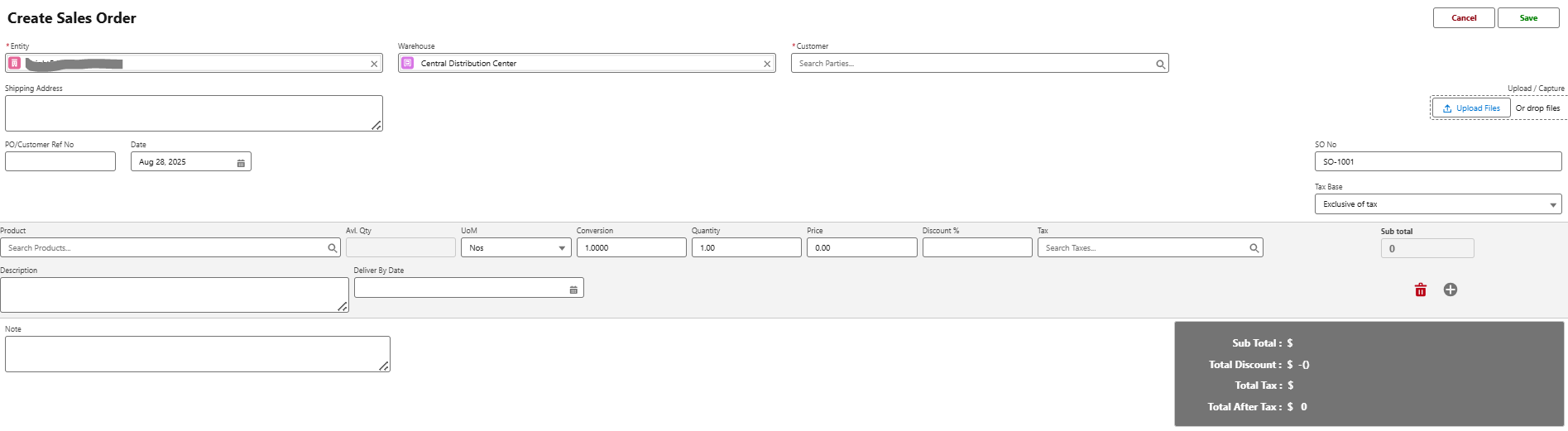
- Fill in the following details:
Customer Account – Select the customer placing the order.
SO Number – Auto-generated or manually entered.
Order Date – Date of creation.
Delivery Date – Expected shipment or delivery date.
Warehouse – Location from which goods will be dispatched.
Payment Terms – e.g., Net 30, Advance, or COD.
- Add products to the SO:
Select products from the catalog.
Specify quantities and selling price.
Apply discounts, promotions, or taxes if applicable.
Step 2: Save and Approve the SO
Save the SO as Draft if more details are pending.
Submit for approval (if your org uses sales approvals).
Once approved, the SO is marked as Confirmed and ready for fulfillment.
Step 3: Sending the SO to Customers
Print or export the SO in PDF format.
Email the SO directly to customers from Salesforce (if enabled).
Attach supporting documents like quotes, terms, or agreements if needed.
Step 4: SO Lifecycle
Draft – SO created but not yet finalized.
Confirmed – Approved and shared with the customer.
Partially Fulfilled – Some items shipped, others pending.
Closed – Fully delivered and invoiced.
Best Practices
Use consistent SO numbering for easy tracking.
Always link SOs to the correct customer account.
Define approval rules for high-value sales.
Regularly monitor open and pending SOs via dashboards.
Totals in Sales Order
When processing a Goods Issue against a Sales Order, the system provides a Totals summary for better tracking:
Total Quantity – The total ordered quantity across all items in the Sales Order.
Total Issued – The quantity already issued against the order. Helps track pending dispatches.
Total Amount – The total value of the Sales Order based on quantity and price.
This section helps you quickly see how much stock has been dispatched versus what remains outstanding. It also ensures accuracy when handling partial deliveries.
You can also perform the following actions on existing sales orders:
Send Email
Open the sales order, click Send Email, review and send.
Download or Print Sales Order
Open the sales order, click PDF, preview, then click Download or Print.
Edit Sales Orders
Open Sales Orders tab, select a sales order, click Edit, make changes, then Save.
Clone Sales Orders
Open Sales Orders tab, select a sales order, click Clone, update details, then Save.
Delete Sales Orders
Open Sales Orders tab, select a sales order, click Delete, then confirm.
Attach Files
Open the purchase order, go to Notes & Attachments, click Upload Files or drag and drop. Manage files as needed.
Next Step
Once the Sales Order is confirmed, the next step in the sales cycle is Goods Issue (GI).
Refer to the article Issuing Goods to learn how to record stock dispatches when fulfilling customer orders.
Was this article helpful?
That’s Great!
Thank you for your feedback
Sorry! We couldn't be helpful
Thank you for your feedback
Feedback sent
We appreciate your effort and will try to fix the article