Create a New Product
To add a new Product:
- Click the Products tab.
- Click New in the top right corner of the page.
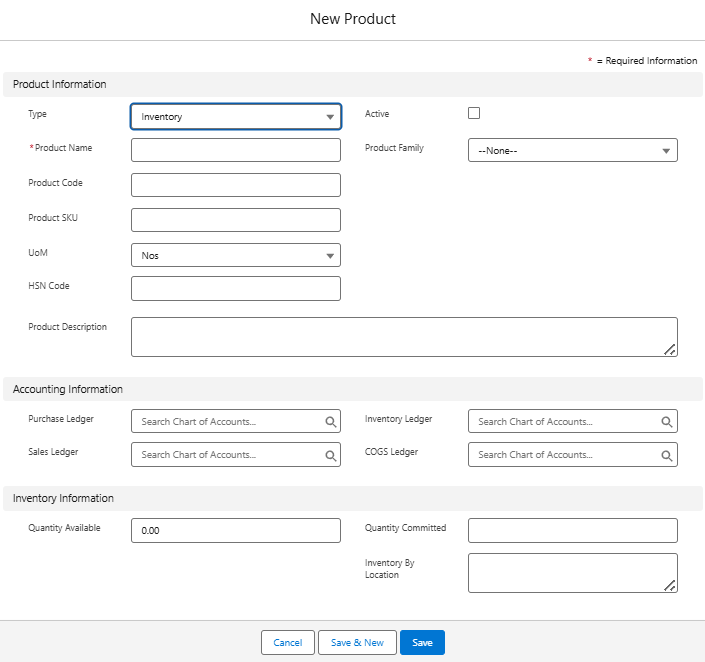
- Enter the below details of your product.
- Product Info such as Type (Inventory / Non-inventory / Service), Name, Code, SKU, UoM, HSN, Description
- Accounting Info such as Purchase, Sales, Inventory, and COGS ledgers
- Inventory Info such as Quantity Available and Quantity Committed
- Click Save.
Add Standard Price
To add a standard price to a product:
- Click the Products tab.
- Select the product for which you want to add a standard price.
- Click Add Standard Price button under Price Books tab.
- Enter the List Price and Save.
Inventory Information in Product
When you open a product record, you can view its inventory status. This section helps in planning, order fulfillment, and stock control. The key fields are:
Quantity on Hand – The actual stock physically available in the warehouse.
Quantity Committed – The stock already reserved/allocated for open Sales Orders or Work Orders but not yet issued.
Quantity Available – The net available stock that can be promised to customers, calculated as:
Quantity Available = Quantity on Hand – Quantity CommittedInventory by Location – A breakdown of stock across different warehouses or storage locations. This is useful if you have multiple warehouses or distribution centers.
This ties back directly to the Totals section in PO, SO, and WO:
When goods are received (PO → Goods Receive), Quantity on Hand increases.
When goods are issued (SO/WO → Goods Issue), Quantity Committed decreases.
Quantity Available dynamically updates with every transaction.
You can also perform the following actions on existing products:
Edit Product
Open Products tab, select a product, click Edit, make changes, then Save.
Clone Product
Open Products tab, select a product, click Clone, update details, then Save.
Delete Product
Open Products tab, select a product, click Delete, then confirm.
Was this article helpful?
That’s Great!
Thank you for your feedback
Sorry! We couldn't be helpful
Thank you for your feedback
Feedback sent
We appreciate your effort and will try to fix the article