To create and manage a cycle count, follow the steps below:
Step 1: Navigate to Cycle Counts
Go to the Inventory App.
Select the Cycle Counts tab.
Click New to create a new record.
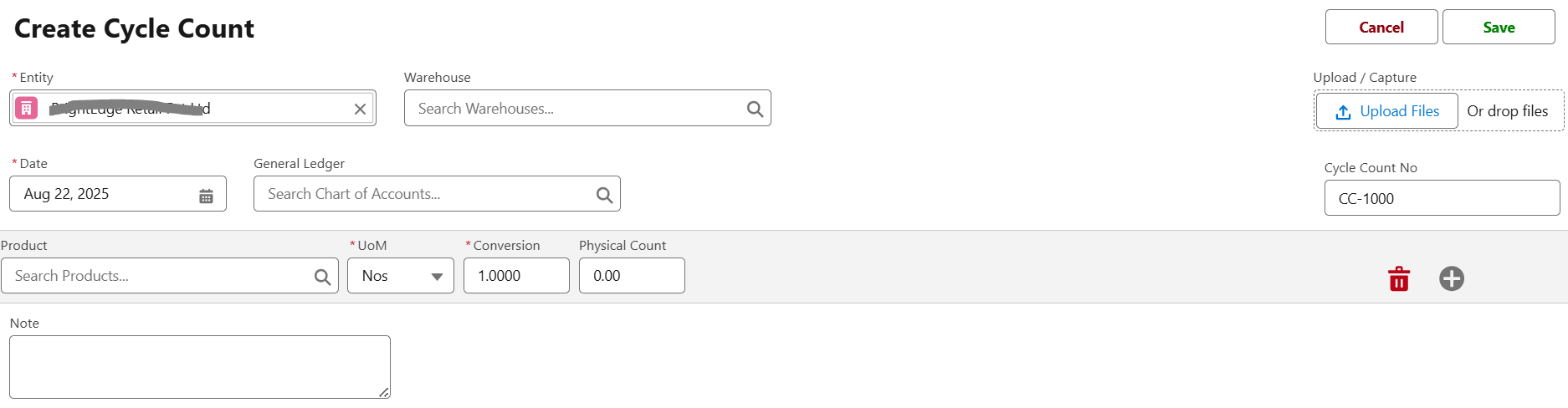
Step 2: Fill in Cycle Count Details
From the Create Cycle Count screen:
Entity → Select the company/entity for which the cycle count is performed.
Warehouse → Choose the warehouse where stock will be verified.
Date → Select the date of the cycle count.
General Ledger → Link to a chart of accounts if required for posting adjustments.
Cycle Count No → Auto-generated unique identifier for the record.
Step 3: Add Products to Count
Search and select the Product.
Define the Unit of Measure (UoM).
Enter the Conversion factor if applicable.
Input the Physical Count (the actual counted quantity).
Add Notes if needed.
Use the + button to add multiple products.
Step 4: Attach Supporting Files (Optional)
Upload scanned sheets, images, or files as proof of counting using the Upload/Drop Files option.
Step 5: Save the Cycle Count
Review entered details.
Click Save.
Once saved, the system will compare Physical Count vs. System Stock. If a discrepancy exists, an Inventory Adjustment can be created.
Best Practices for Cycle Counts
Schedule cycle counts periodically (weekly, monthly, or quarterly).
Prioritize high-value, fast-moving, or critical stock items.
Assign responsible staff for physical verification.
Always attach supporting evidence for audit purposes.
Use reports to analyze variance trends over time.
Was this article helpful?
That’s Great!
Thank you for your feedback
Sorry! We couldn't be helpful
Thank you for your feedback
Feedback sent
We appreciate your effort and will try to fix the article