This article walks you through creating and configuring warehouses in the Inventory App.
Step 1: Create a New Warehouse
Click on the Warehouses tab and click New.
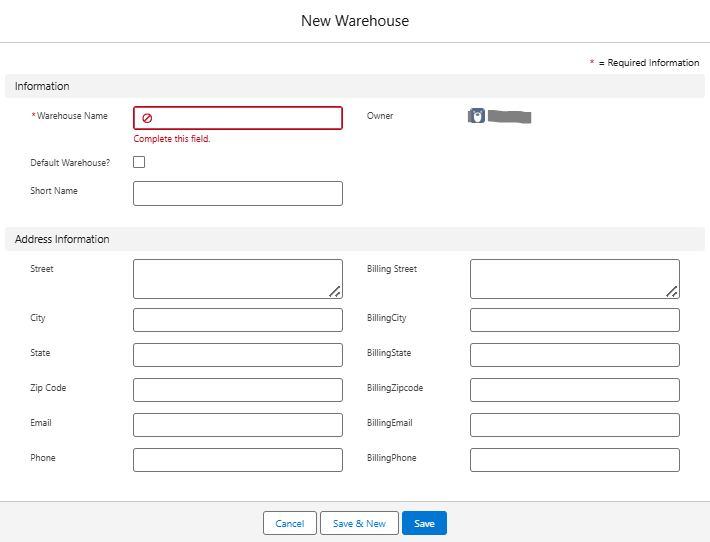
Fill in the following details:
Warehouse Name – e.g., “Central Depot – Bangalore”.
Address Information – physical location details.
Contact Information – warehouse manager or key contact.
Click Save.
Step 2: Link Products to Warehouses
Define initial stock levels for each warehouse.
Use Goods Receives transactions to record opening stock.
Best Practices
Use clear and consistent naming conventions for warehouses.
Keep warehouse details updated (address, contact).
Regularly reconcile physical stock with system records.
You can also add Purchase Order, Good Receives, Sales Order, Good Issues, Cycle Counts via the warehouse or view the existing Purchase Order, Good Receives, Sales Order, Good Issues, Cycle Counts.
You can also perform the following actions on existing Warehouse:
Edit Warehouse
Open Warehouses tab, select a warehouse, click Edit, make changes, then Save.
Clone Warehouse
Open Warehouses tab, select a warehouse, click Clone, update details, then Save.
Delete Warehouse
Open Warehouses tab, select a warehouse, click Delete, then confirm.
Next Step: Once your warehouses are set up, proceed to Managing Stock and Goods Movement to start recording transactions across locations.
Was this article helpful?
That’s Great!
Thank you for your feedback
Sorry! We couldn't be helpful
Thank you for your feedback
Feedback sent
We appreciate your effort and will try to fix the article