Setting up taxes in your Accounting App involves two main steps:
Step 1: Create a New Tax
Each tax (e.g., GST, VAT, TDS) should be created as a separate record.
To create a tax:
- Navigate to the Taxes tab.
- Click New in the top-right corner.
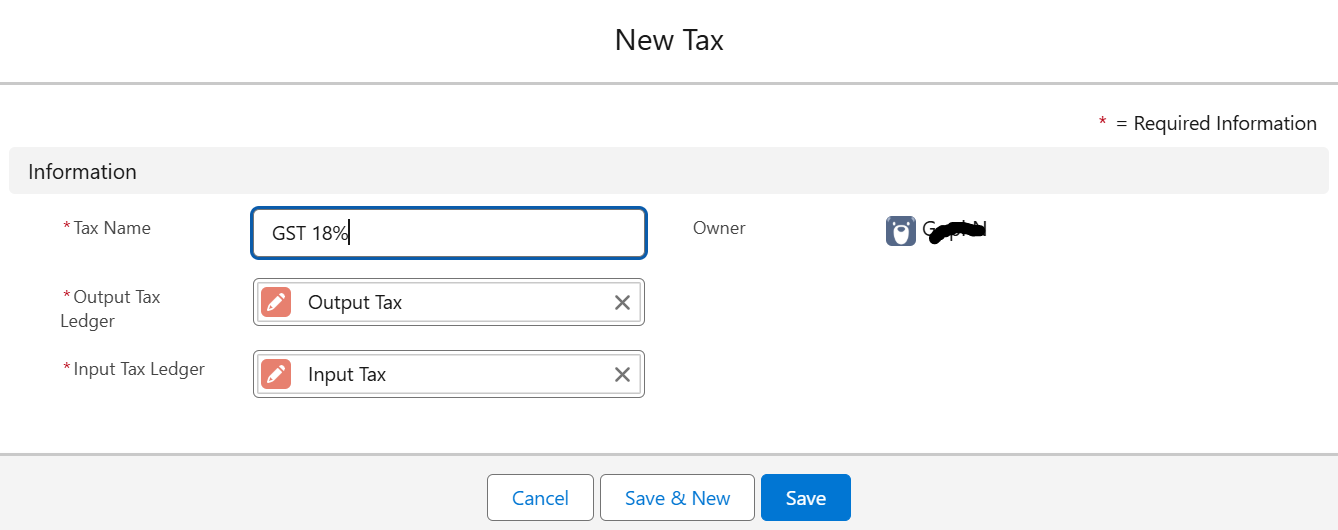
- In the New Tax form, fill in the following fields:
| Field Name | Description |
|---|---|
| Tax Name | Name of the tax (e.g., GST 18%, VAT 5%) |
| Output Tax Ledger | GL account to post output (sales) tax amounts |
| Input Tax Ledger | GL account to post input (purchase) tax amounts |
- Click Save.
Step 2: Define Tax Rates
Each tax must have at least one tax rate, categorized by Type – either Sales or Purchases.
To create a tax rate:
Under the Tax Rates related list, click New Tax Rate.
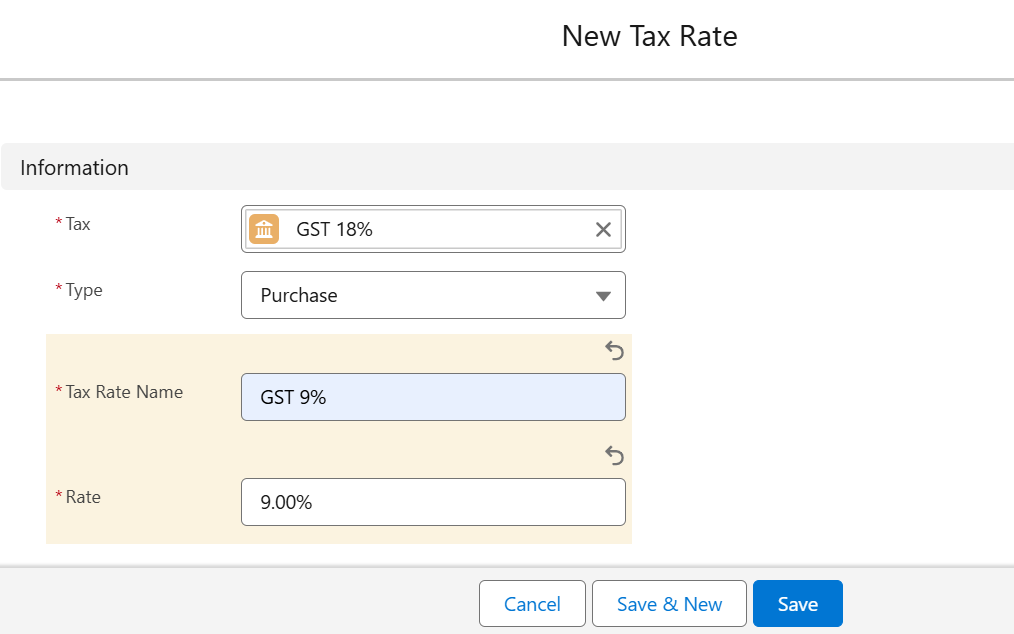
Select the Rate Type – Sales or Purchase.
Enter the Tax Rate Name
Enter the Rate (%).
Save the tax rate.
You can create multiple tax rates under one tax to handle different scenarios (e.g., CGST/SGST split, or different rates for services and goods).
Example:
Tax Name: GST
Tax Rates:
Sales: 9%
Purchases: 9%
Once created, the tax can be linked to Products, Invoices, and Bills.
You can also perform the following actions on existing records:
Edit Tax Component:
Update an existing tax component by selecting it, clicking Edit, modifying the details, and saving the changes.
Clone Tax Component:
You can quickly create a new tax component using the details of an existing one by clicking Clone, editing as needed, and saving it.
Delete Tax Component:
Remove a tax component permanently by selecting it and clicking the Delete button on its details page.
Attach Files to Tax Component:
Add supporting files to a tax component by clicking Upload Files under ‘Notes & Attachments’ or by dragging and dropping files directly.
Was this article helpful?
That’s Great!
Thank you for your feedback
Sorry! We couldn't be helpful
Thank you for your feedback
Feedback sent
We appreciate your effort and will try to fix the article