To add a new entity:
- Go to the Entities tab.
- Click New in the top-right corner.
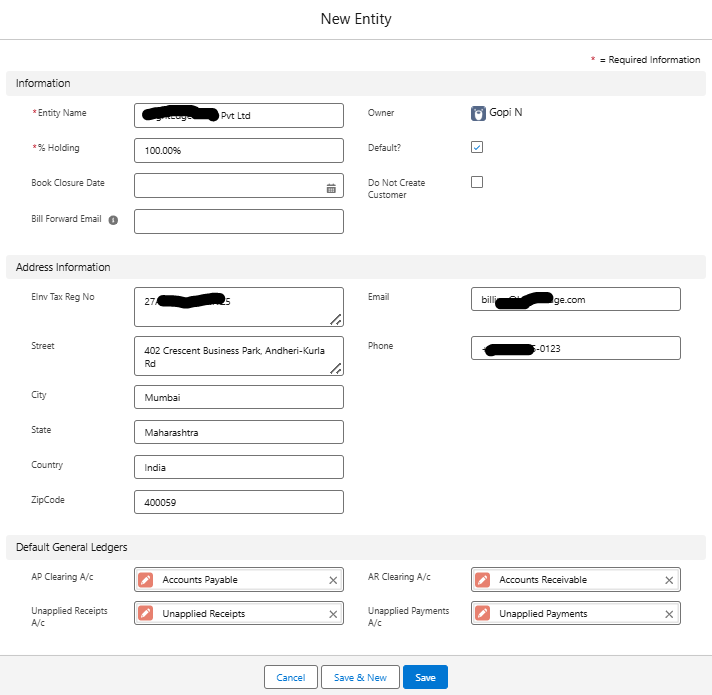
- Fill in the following details:
| Field | Description |
|---|---|
| Entity Name | Legal or internal name of the entity |
| % Holding | Optional – ownership percentage if this is a subsidiary |
| Book Closure Date | The fiscal year-end or audit closing date |
| Bill Forward Email ** | This is an email which you can give it to your vendors to forward the bills. |
| Default | Mark this as the default entity for the current user (if applicable) |
| Do Not Create Vendor | Option to skip auto-creation of vendor records linked to this entity |
| Do Not Create Customer | Option to skip auto-creation of customer records linked to this entity |
| Address / Contact Info | Physical and email/phone details for communication |
| E-Invoice Tax Reg. No. | GST or regional tax registration number (for compliance) |
| Default General Ledgers | AP Clearing A/c, AR Clearing A/c, Unapplied Receipts A/c, Unapplied Payments A/c |
- Click Save.
** This is an email which you can give it to your vendors to forward the bills. System will be automatically reading the bill and auto create a draft bill. But its not your regular email. You have to setup this email Id in Accountify.ai. Please though this detailed documentation on setting up this email Id.
Entity-Level Operations:
After entity creation, the following modules can be used entity-wise:
- Chart of Accounts
- Customers and Vendors
- Invoices and Bills
- Bank Accounts
- Reports
- Taxes and Withholding
- Manual Journals
- Recurring Transactions
When creating any transaction or master data record, you’ll be prompted to select the Entity it belongs to.
Switching Between Entities
If you have access to multiple entities:
- You can select the current working entity via dropdown or filter (as configured in your UI).
- Reports and dashboards will respect entity selection.
- Admins can control which users see which entities.
You can also perform the following actions on existing records:
Edit an Entity
To update an entity, select it, click Edit, make the necessary changes, and click Save.
Clone an Entity
To create a copy of an existing entity, select it, click Clone, update the details, and click Save.
Delete an Entity
To remove an entity, select it, click Delete, and confirm the deletion. You cannot delete entities linked to active records.
Change Entity Owner
To transfer ownership, select the entity, click Change Owner, enter the new owner, and click Submit.
Was this article helpful?
That’s Great!
Thank you for your feedback
Sorry! We couldn't be helpful
Thank you for your feedback
Feedback sent
We appreciate your effort and will try to fix the article