Setting up a bank account for your organization involves two steps:
Add the Bank under Bank Connect
Add Bank Accounts associated with that bank
Step 1: Create a New Bank
To register a bank your organization transacts with:
- Go to the Bank Connect tab.
- Click New in the top-right corner.
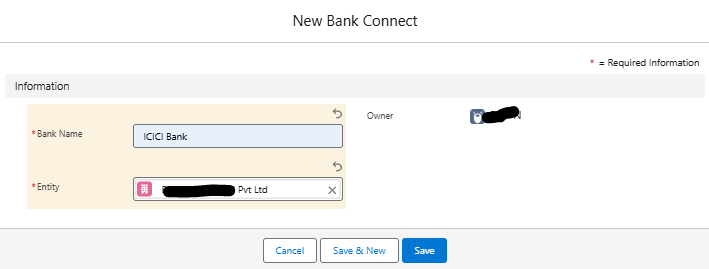
- Fill in the required fields:
| Field | Description |
|---|---|
| Bank Name | Name of the bank (e.g., ICICI Bank, SBI) |
| Entity | The entity or ledger this bank is linked to |
- Click Save.
You can create separate bank entries for each bank used by your various entities.
Step 2: Add Bank Account(s) under a Bank
Each bank can have one or more accounts used for financial transactions. Here's how to add them:
- After saving the Bank record, go to the Bank Accounts section within the same record.
- Click New.
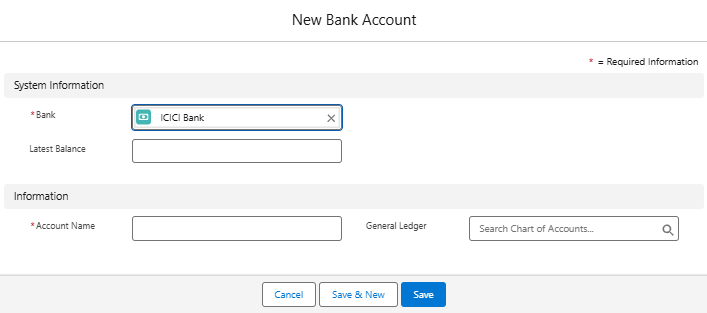
- Enter the following details:
| Field | Description |
|---|---|
| Connection Status | Status of connection (Manual or Synced via bank feed) |
| Latest Balance | Current balance as per last sync or manual update |
| Account Name | Descriptive name for the account (e.g., HDFC-Current-001) |
| General Ledger | Select the GL account this bank account maps to |
- Click Save.
Multiple accounts can be added under a single bank, each associated with its own GL account.
You can also perform the following actions on existing records:
Edit Bank Account
Go to Bank Connect, select a bank, view the listed accounts, click Edit or Delete, make changes, and click Save.
Edit Bank
Go to Bank Connect, select a bank, click Edit, update the details, and click Save.
Delete Bank
Go to Bank Connect, select a bank, click Delete, and confirm the deletion.
Was this article helpful?
That’s Great!
Thank you for your feedback
Sorry! We couldn't be helpful
Thank you for your feedback
Feedback sent
We appreciate your effort and will try to fix the article