Withholding Tax (commonly referred to as TDS) allows your accounting app to automatically deduct a portion of the payment when recording vendor bills, as per applicable tax regulations.
1: Enable Withholding Tax:
Before you can assign TDS to vendors, you must first enable the feature:
Go to App Settings or Configuration.
Enable the Withholding Tax / TDS option.
Save your changes.
2: Create a Withholding Tax Rule:
Each TDS type (e.g., Contractor TDS, Professional Fees TDS) is created as a rule.
Steps:
- Go to the Withholding Taxes tab.
- Click New.
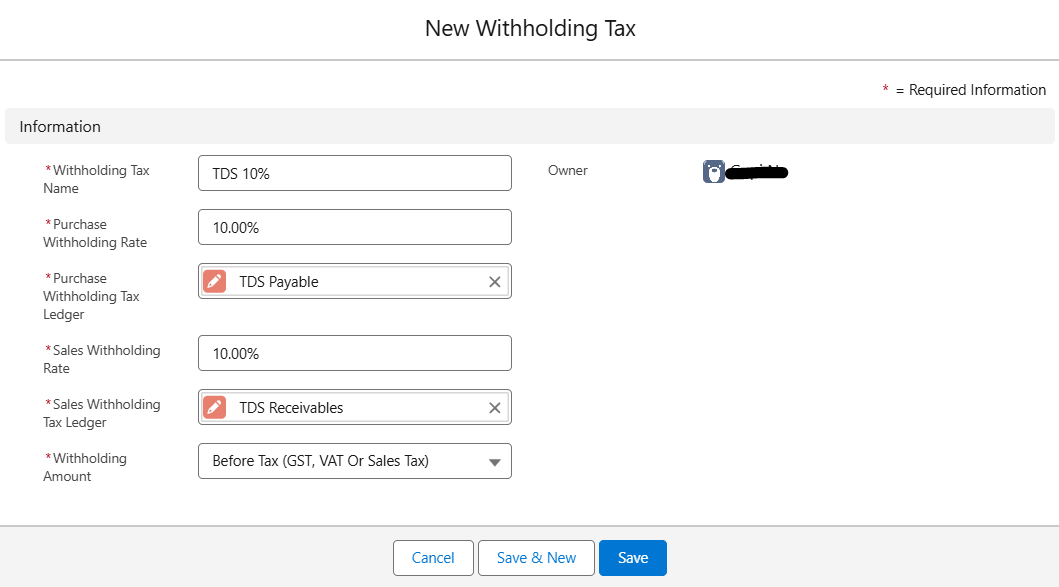
- Fill in the following fields:
| Field | Description |
|---|---|
| Withholding Tax Name | Name of the component (e.g., TDS 10%) |
| Purchase Withholding Rate | Rate to be deducted while paying vendors |
| Purchase Withholding Tax Ledger | GL account for posting vendor-side withholding |
| Sales Withholding Rate | Rate to be deducted from customer payments if applicable |
| Sales Withholding Tax Ledger | GL account for posting customer-side withholding |
| Withholding Amount | Whether tax is computed Before Tax or After Tax |
- Click Save.
3. Assign TDS to Vendors:
Once the rule is created, associate it with relevant vendors.
Steps:
Open a vendor record.
In the Withholding Tax field, select the appropriate rule.
Save the vendor.
Once assigned, TDS will automatically apply when bills are created for that vendor.
4. TDS Auto-Deduction on Vendor Bills:
When you create a vendor bill:
The system checks if the vendor has a TDS rule.
If yes, the specified percentage is automatically deducted.
The deduction is recorded in the Withholding Tax Payable account.
Example:
Vendor: ABC Services
TDS Rule: Professional Services @ 10%
Bill Amount: ₹10,000
TDS Deducted: ₹1,000
Payable Amount: ₹9,000
You can assign this withholding tax to vendors/customers or transactions as needed.
You can also perform the following actions on existing records:
Edit Withholding Tax Component:
Update an existing withholding tax component by selecting it, clicking Edit, modifying the details, and clicking Save.
Clone Withholding Tax Component:
Create a new withholding tax component using the details of an existing one by selecting it, clicking Clone, and saving it after necessary edits.
Delete Withholding Tax Component:
Remove a withholding tax component permanently by selecting it and clicking Delete on the details page.
Attach Files to Withholding Tax Component:
Add relevant files to a withholding tax component by uploading through the Notes & Attachments section or by dragging and dropping files.
Was this article helpful?
That’s Great!
Thank you for your feedback
Sorry! We couldn't be helpful
Thank you for your feedback
Feedback sent
We appreciate your effort and will try to fix the article