Create a New Product
To add a new Product:
- Click the Products tab.
- Click New in the top right corner of the page.
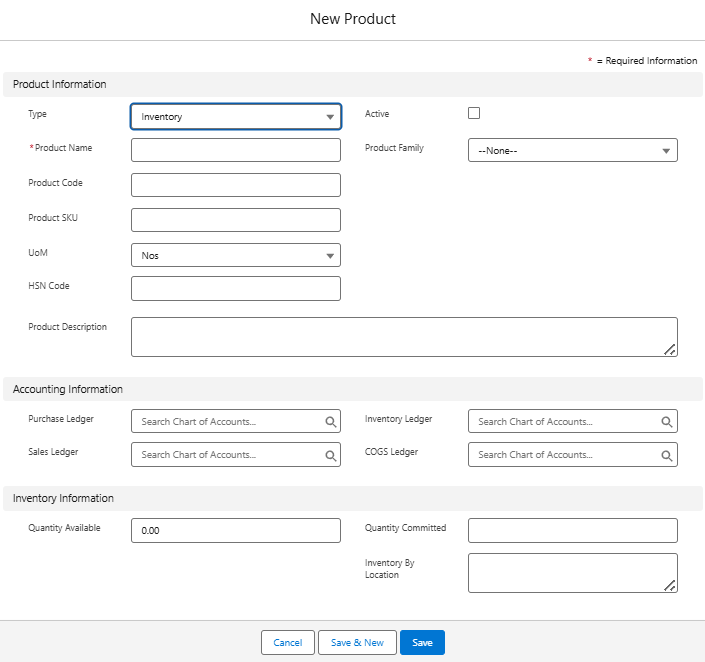
- Enter the below details of your product.
- Product Info such as Type (Inventory / Non-inventory / Service), Name, Code, SKU, UoM, HSN, Description
- Accounting Info such as Purchase, Sales, Inventory, and COGS ledgers
- Inventory Info such as Quantity Available and Quantity Committed
- Click Save.
Add Standard Price
To add a standard price to a product:
- Click the Products tab.
- Select the product for which you want to add a standard price.
- Click Add Standard Price button under Price Books tab.
- Enter the List Price and Save.
Printable View
To view the product in the printable view:
- Click the Products tab.
- Click Printable View button in the top right corner of the page.
- Print the page.
Edit Product
Open Products tab, select a product, click Edit, make changes, then Save.
Clone Product
Open Products tab, select a product, click Clone, update details, then Save.
Delete Product
Open Products tab, select a product, click Delete, then confirm.
Was this article helpful?
That’s Great!
Thank you for your feedback
Sorry! We couldn't be helpful
Thank you for your feedback
Feedback sent
We appreciate your effort and will try to fix the article