Your Accounting App provides a Recurring Transaction feature to help automate repeated entries like rent, bills, or regular income—saving time and ensuring consistency.
How to Access
Go to the Recurring Transactions tab in your Accounting App.
Click “New” to create a recurring transaction.
Fill in the Details
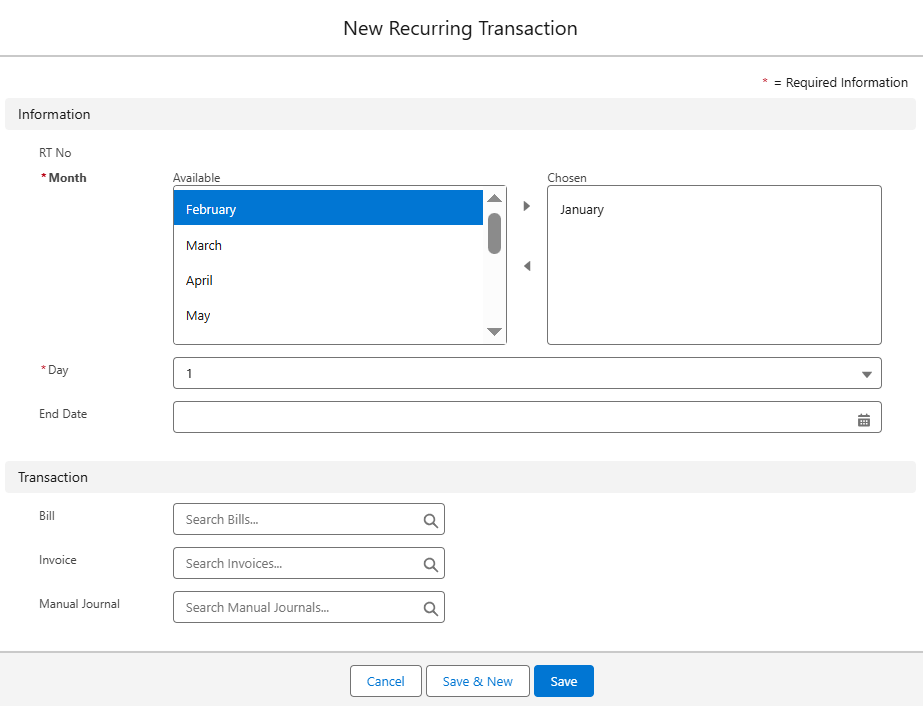
On the New Recurring Transaction screen:
RT No: Auto-generated or entered manually.
Month: Select one or more months when the transaction should occur (e.g., January, February, etc.).
Day: Enter the day of the month (e.g., 1st, 15th).
End Date (optional): Define when the recurring schedule should stop.
Choose the Transaction Type
Under the Transaction section:
Link to a specific Bill, Invoice, or Manual Journal that needs to recur.
Tip: Only one transaction type can be associated per recurring entry.
Save
Once configured:
Click Save or Save & New to create the recurring rule.
The system will automatically create the transaction for the selected months and day.
Was this article helpful?
That’s Great!
Thank you for your feedback
Sorry! We couldn't be helpful
Thank you for your feedback
Feedback sent
We appreciate your effort and will try to fix the article