Sources of Income:
- Invoices: Sales to customers recorded as receivables.
- Receipts: Direct income entries (e.g., interest income, donations).
- Manual Journals: Adjustments or non-standard income (e.g., gain on asset sale).
Recording the Income:
1. Create a Customer Invoice:
- Go to Invoices tab.
- Click New.
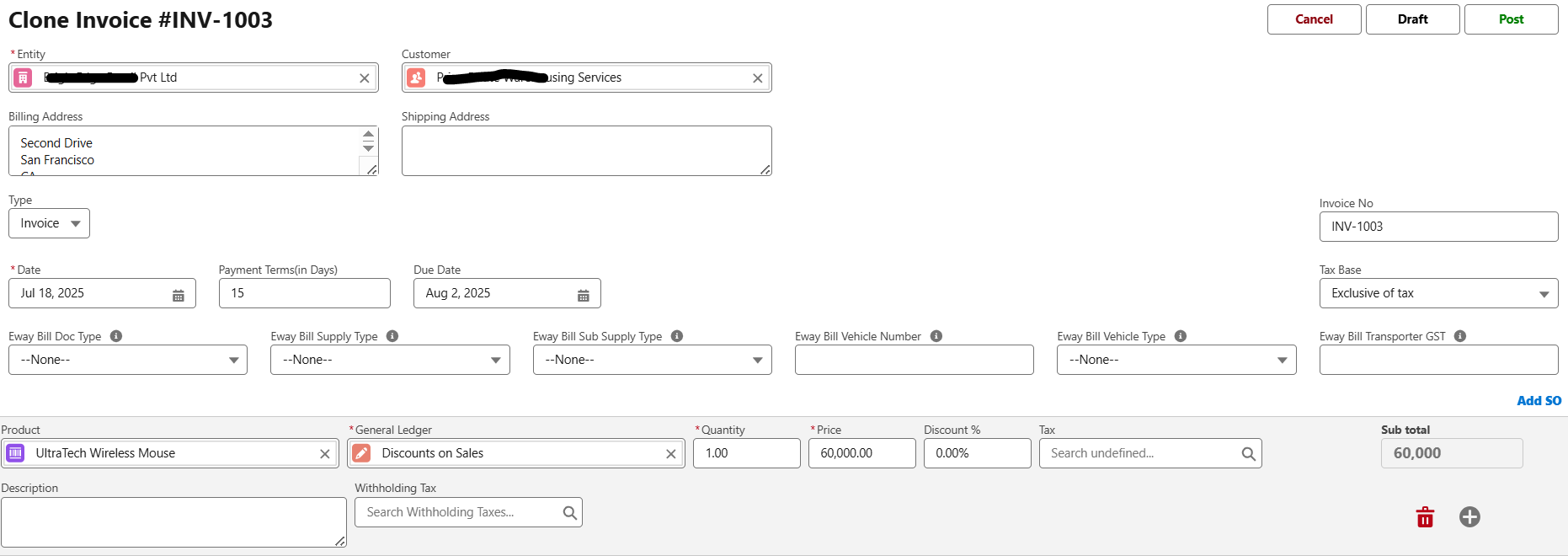
- Enter customer, address, payment terms, due date, product/service, quantity, price, tax, and due date.
- Save and Post the invoice.
2. Record Payment for Invoice
If you are receiving a cash payment for an invoice or through some other mode of payment, you can record the payment manually. To record payment:
- Go to Invoices tab.
- Select the invoice for which you want to record the payment.
- Click New Receipt on the top of the page to record the payment against this invoice.

- Enter Receipt No, Date, Receipt Account, Amount, and Memo.
- If the customer does not pay you the full amount, enter the amount you’ve received in the Amount Received field. It will be recorded as a partial payment.
- Save and Post the invoice.
Once you record payment for an invoice, it will be saved in the Receipts tab.
3. Record Receipt by Line
Use Receipt by Line to record payments received against individual line items of an invoice.
Click the button, enter amounts for each line, and save.
View Payments Received
From Invoices: Open an invoice and go to the Receipts tab.
From Receipts: Open the Receipts tab and select a payment.
Edit Payments Received
Go to Invoices, open an invoice, click the Receipts tab, and click the edit icon.
Or edit directly from Receipts.
Match Receipt
Open an invoice, click Match Receipts, select receipt(s), enter amount, and click Save.
Delete Payment
To delete a payment, go to Invoices, open an invoice, click the Receipts tab, then click the delete icon and confirm.
You can also delete directly from Receipts.
Payment Status
| Status | Meaning |
|---|---|
| Pending | No payment recorded. |
| Overdue | Due date passed without full payment. |
| Partially Received | Partial payment recorded. |
| Paid | Fully paid. |
You can also perform the following actions on existing invoices:
Edit Invoice
Go to Invoices, select an invoice, click Edit, update the details, then click Save.
Clone Invoice
Select an invoice, click Clone, make changes, then click Save.
Delete Invoice
Delete any linked payments first. Then select invoice(s), click Delete Selected or open an invoice and click Delete.
Attach Files
Open an invoice, go to Notes & Attachments, click Upload Files or drag and drop. Manage files as needed.
Make Invoice Recurring
Open an invoice, click Make Recurring, set frequency and end date, then click Save. You can also do this from Recurring Transactions.
View Journal
Select an invoice, then click View Journal (top-right).
Send Email
Open an invoice, click Send Email, review and send.
Send Reminder
If unpaid, open the invoice, click Send Reminder, review and send.
Void Invoice
Click Void on the invoice to cancel it. It remains in records but marked inactive.
Download or Print Invoice
Open an invoice, click PDF, preview, then click Download or Print.
Post/Cancel E-Invoice
Open the invoice, click Post E-Invoice or Cancel E-Invoice as needed.
Post/Cancel E-Way Bill
Open the invoice, click Post E-Way Bill or Cancel E-Way Bill as needed.
Was this article helpful?
That’s Great!
Thank you for your feedback
Sorry! We couldn't be helpful
Thank you for your feedback
Feedback sent
We appreciate your effort and will try to fix the article