Sources of Expenses:
- Bills: Purchases from vendors recorded as payables.
- Payments: Direct expenses not associated with a bill.
- Manual Journals: Adjustments (e.g., depreciation, asset write-off).
Create a New Bill (Manual)
To create a new bill manually:
- Go to Bills tab.
- Click New in the top right corner of the page.
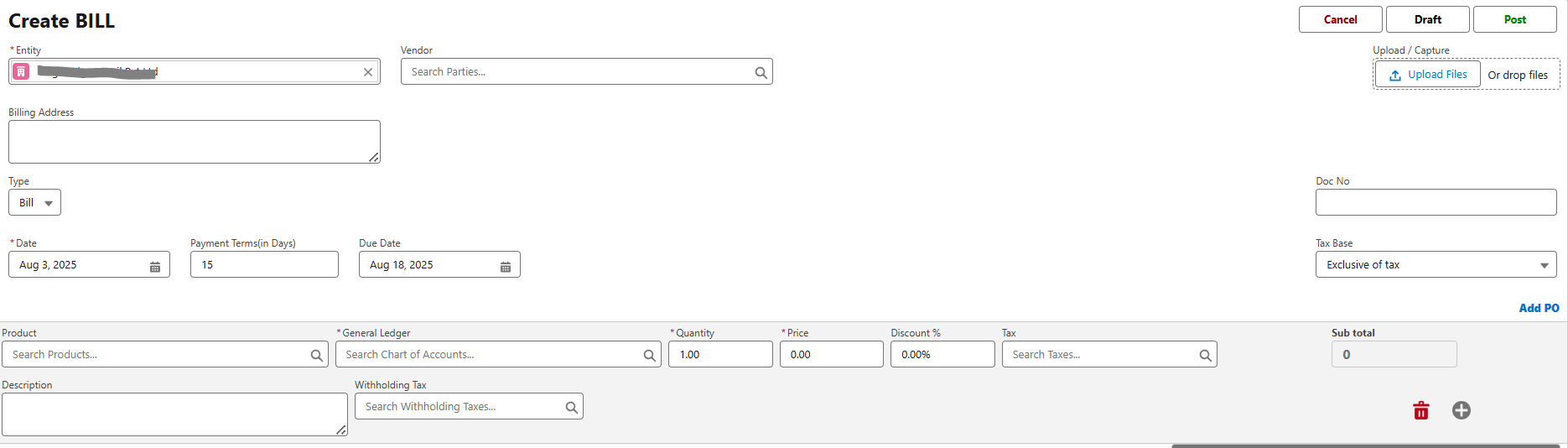
- Fill in the required details.
| Fields | Description |
| Vendor | Select the vendor whose bill you’re recording. |
| Billing Address | Enter the billing address. |
| Type | Bill (Default) or Expense |
| Bill Date | Enter the date on which you create the bill. |
| Due Date | Enter the due date for bill payment. |
| Payment Terms | Select the time frame within which you need to pay your vendor. For example, Net 15 would mean you’ll have to pay the vendor within 15 days from the date when the bill is created. When you select a payment term, the due date will be adjusted accordingly. |
| Doc No | The default transaction series will be used. Choose a different one, if needed. |
| Tax Base | Choose if the Tax Base is inclusive or exclusive of Tax. |
| Product | The default transaction series will be used. Choose a different one, if needed. |
| General Ledger | Select the Account. |
| Quantity | Enter the quantity for each item. |
| Price | Choose the price for the items in the invoice. |
| Discount % | Enter a Percentage (%) for discounts. |
| Tax | Select the appropriate Tax. |
| Description | Enter the description. |
| Withholding Tax | Select the appropriate Withholding Tax. |
| Note | Add notes to display them in the invoice. |
- Add more items by clicking +Add
- Review the order and include any notes or attachments, if necessary.
- Save the transaction as Draft to submit later or Post it.
Record Payment (Pay Now)
You can manually record payment for a bill. Here’s how:
- Go to Bills tab.
- Select the bill for which you wish to record payment.
- Click the Pay Now button in the top of the page.
- Fill in the required details.
| Fields | Description |
| Date | Enter the date you make the bill payment. |
| Payment Account | Enter the Payment Account. The Payment Account is where the money flows out — it’s the GL account used when making payments. Usually, cash or bank accounts go here. |
| Amount | Enter the amount to pay the vendor. By default, the total amount is auto-populated. You can also choose to pay a part of the payment. |
| Check No | Key in the Number of your choice or keep the auto-populated value. |
| Memo | Add Notes |
- Click Save.
View Payments
Go to Bills, select a bill, click the Payments tab to view recorded payments. Hover over a payment to Edit or Delete.
Edit Payment
In the Payments tab, click the Edit icon next to the payment, make changes, then click Save.
Match Payment
Select a bill, click Match Payment, enter the amount, then click Save.
Delete Payment
Go to the Payments tab of a bill. Click Delete icon. Confirm deletion.
Payment Status of a Bill
A bill can have any one of the following payment statuses.
| Status | Description |
| Pending | Pending Payment |
| Overdue | The due date for paying the bill has been crossed. |
| Partially Paid | The bill amount is recorded partially. |
| Paid | The bill amount is completely paid. |
You can also perform the following actions on recorded bills:
Edit Bill
You can modify any existing bill to update details like the amount, due date, or vendor. Just go to the Bills tab, select the bill, click Edit, make the necessary changes, and save it.
Clone Bill
If you need to create a similar bill, you can use the Clone option. This will copy all the details from an existing bill into a new draft. You just need to review and save it.
Delete Bill
You can delete a bill if it's no longer needed. However, if there are any payments or credits applied to it, you must remove them first. To delete, go to the bill, click Delete Selected, and confirm.
Attach Files
You can add supporting documents like receipts or PDFs to any bill. In the bill’s details page, under the Notes & Attachments section, click Upload Files or drag and drop your files.
Make Bill Recurring
If the same bill repeats monthly or at regular intervals, you can make it recurring. Select the bill, click Make Recurring, choose the month, date, and end period, then save it.
View Journal
Each recorded bill automatically creates a journal entry. You can view this by opening the bill and clicking View Journal in the top-right corner.
Was this article helpful?
That’s Great!
Thank you for your feedback
Sorry! We couldn't be helpful
Thank you for your feedback
Feedback sent
We appreciate your effort and will try to fix the article