Note: This feature is accessible only when the Accounting and Inventory software are purchased together. Please refer to the Accounting Software documentation for more details.
After receiving goods from a vendor, the next step is recording the vendor’s invoice. In the Inventory App, Vendor Bills are linked to Purchase Orders (POs) and Goods Receipts (GRs) to ensure accurate 3-way matching (PO → GR → Bill). Once bills are approved, payments can be recorded and tracked.
Purpose of Vendor Bills
Capture invoices from vendors for purchased goods or services.
Match vendor invoices with purchase orders and goods receipts to avoid discrepancies.
Track outstanding dues and manage payments effectively.
Maintain a clear audit trail of financial transactions.
Step 1: Create a New Vendor Bill
Open the Bills tab and click New.
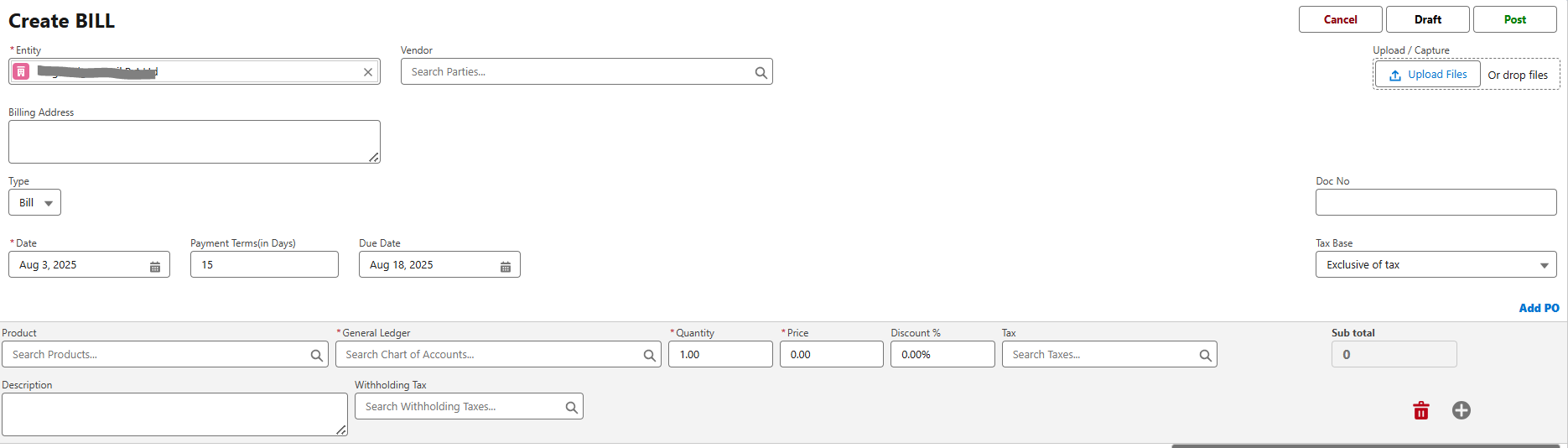
Select the Vendor Account.
Link the Vendor Bill to an existing Purchase Order (recommended).
Verify that quantities and prices from the PO and GR match the invoice.
Enter the following details:
Bill Number (from vendor).
Bill Date and Due Date.
Warehouse (where goods were received).
Taxes, Discounts, and Charges if applicable.
Save the bill.
Step 2: 3-Way Matching
The system validates the Vendor Bill against the PO and GR.
Differences in price or quantity are flagged for review.
Ensures vendors are only paid for goods actually ordered and received.
Step 3: Recording Payments
Open the Vendor Bill.
Click New Payment.

Choose Payment Method (Bank Transfer, Cash, Cheque, etc.).
Enter payment details:
Amount Paid (full or partial).
Payment Date.
Reference Number (transaction ID/cheque no.).
Save the payment entry.
Step 4: Bill Lifecycle
Draft – Bill created but not yet finalized.
Open – Approved and awaiting payment.
Partially Paid – Some amount settled, balance pending.
Paid – Fully settled.
Reports & Dashboards
Outstanding Vendor Bills – Bills pending payment.
Aging Report – Bills overdue by 30, 60, or 90+ days.
Vendor Spend Report – Total spend per vendor over a given period.
Payments Dashboard – Track paid vs pending bills and upcoming dues.
Best Practices
Always link Vendor Bills to POs and GRs for accuracy.
Use due dates to prioritize payments and avoid penalties.
Reconcile payments regularly with your accounting system.
Monitor vendor performance using bill and payment data.
Next Step
Now that you’ve learned how to manage Vendor Bills and Payments, you can explore Purchase Reports & Dashboards to gain deeper insights into your procurement activities.
Was this article helpful?
That’s Great!
Thank you for your feedback
Sorry! We couldn't be helpful
Thank you for your feedback
Feedback sent
We appreciate your effort and will try to fix the article