A Work Order helps you plan and track the production of a product. It defines the quantity to be produced, the Bill of Materials (BOM) used, and the estimated cost of raw materials.
Steps to Create a Work Order
Navigate to Work Orders
Go to Work Orders tab and click New

Fill in the Work Order Details
Entity: Select the entity (company) under which production will take place.
Party: (Optional) Select the party if the work order is linked to a specific customer/vendor.
Date: Choose the date of the work order.
General Ledger: Select the ledger where production costs should be recorded.
Status: Default is Open. You can update this as the order progresses.
Product: Select the product you want to manufacture.
UoM (Unit of Measure): The unit in which the product will be produced.
Planned Quantity: Enter the quantity of the product to be manufactured.
Warehouse: Choose the warehouse where the finished goods will be stored.
Work Order No.: The system will generate a unique work order number (you may also enter manually if required).
Add Bill of Materials (BOM)
Click on Add BOM.
The system will display the available BOMs for the selected product.
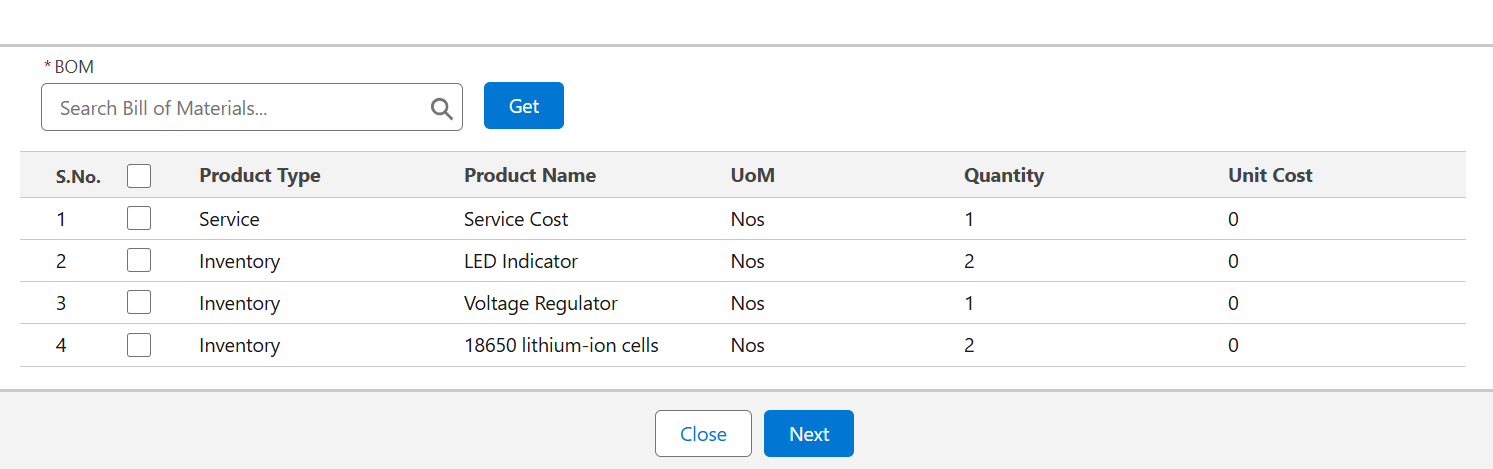
Choose the appropriate BOM and click Next.
The system will automatically calculate the required quantity of each BOM item based on the planned product quantity.
Estimated Cost Calculation
The system will compute the estimated unit cost for each BOM line item.
The total estimated cost of production will be updated accordingly.
Add Additional Details (Optional)
You can add extra products or raw materials if needed.
Enter notes for internal reference.
Save the Work Order
Review all details.
Click Save to create the work order. You can now Submit the work order for approval by clicking Submit for Approval button.
Once saved, the system will allow you to track production progress, material consumption, and final product output.
Quick Tip: The BOM quantities and costs are auto-calculated, saving you time and reducing manual errors.
You can also perform the following actions on existing work orders:
Edit Work Order
Go to Work Orders, select a WO, click Edit, update the details, then click Save.
Clone Work Order
Select a WO, click Clone, make changes, then click Save.
Delete Work Order
Select a WO, click Delete Selected or open a WO and click Delete.
Attach Files
Open a WO, go to Notes & Attachments, click Upload Files or drag and drop. Manage files as needed.
Next Step
After creating a Work Order, you can move to Executing a Work Order, where you’ll learn how to issue materials, dispatch finished product and address material returns if any.
Was this article helpful?
That’s Great!
Thank you for your feedback
Sorry! We couldn't be helpful
Thank you for your feedback
Feedback sent
We appreciate your effort and will try to fix the article