Navigating Between Setup Page and Main Page in Inventory
The Inventory application has two primary pages that you'll frequently use:
Setup Page: Contains configuration options such as master data, tax settings, user controls, and more, accessible from the left-hand menu.
Main Page: Includes operational features like Purchase Orders, Sales Orders, and more.
Navigating from Setup Page to Main Page
When you log in for the first time, you will land on the Setup Page by default.
To go to the Main Page:
Click the dot-square icon [App Launcher] in the top-left corner of the screen.
Search for "Inventory" in the app search bar.
Click on the Inventory app from the list.

Navigating from Main Page to Setup Page
If you're on the Main Page and need to access configuration settings:
To go to the Setup Page:
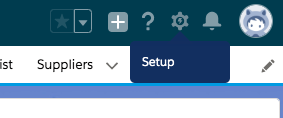
Click the Gear icon ![gear-icon] in the top-right corner of the screen.
From the dropdown, select Setup.
Viewing Records in Inventory
By default, Inventory displays only the records you have recently viewed (such as recent Purchase Orders, Good Issued, or Sales Orders).
To View All Records:
- Navigate to the module you want to explore (e.g., Purchase Orders).
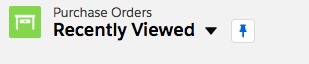
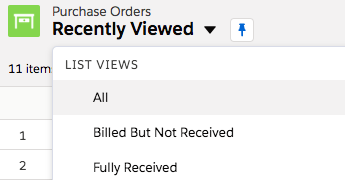
- At the top of the list view, click the dropdown labeled "Recently Viewed".
- Select "All Records" from the list.
To Make "All Records" the Default View:
After selecting "All Records", click the Pin icon next to the view name.
This will pin that list view as your default view for the module.
Was this article helpful?
That’s Great!
Thank you for your feedback
Sorry! We couldn't be helpful
Thank you for your feedback
Feedback sent
We appreciate your effort and will try to fix the article